01
Open Cellular
This menu chooses which SIM is used for data, calls, and texts.
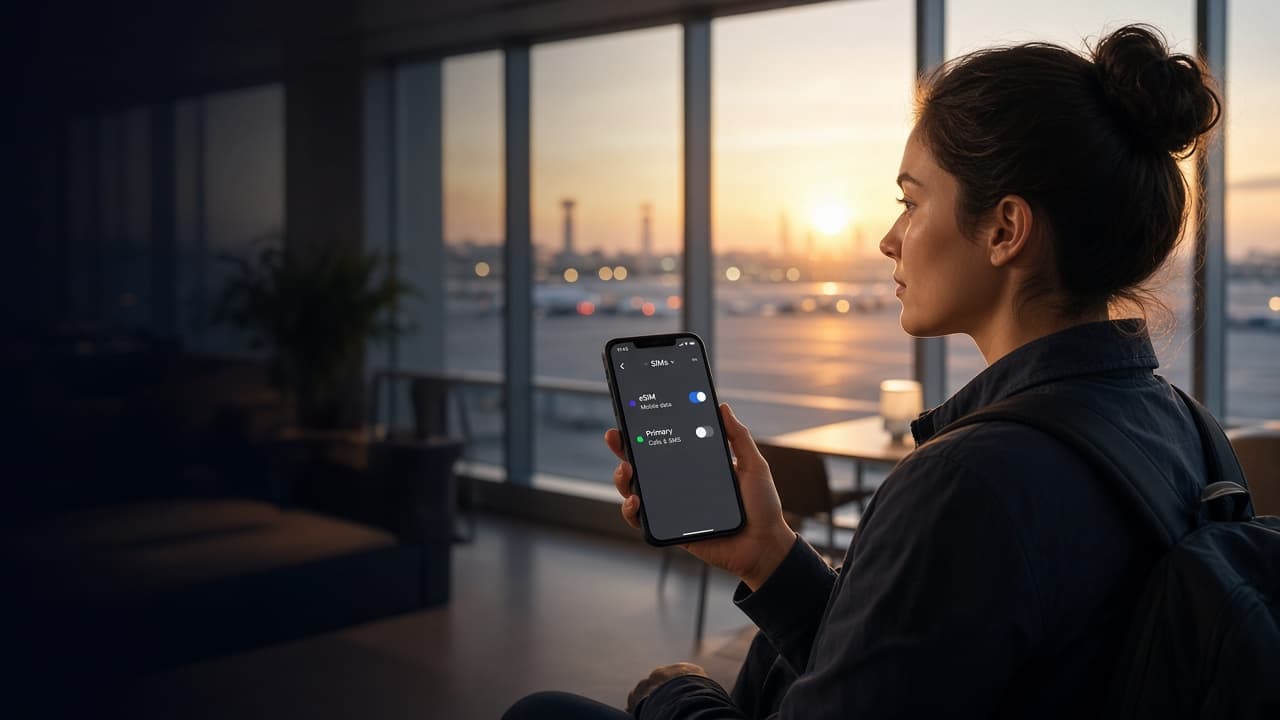
Maps, chat, and browsing should use the CleverFi eSIM. If data stays on your main SIM, that plan’s credit is what gets spent.
Phones can fall back to the main SIM when the eSIM signal is weak. Turn that option off so the switch does not happen in the background.
A travel eSIM is for data. It does not replace your phone number, so leave calls and texts on your main SIM.
Where to open it: Settings → Cellular
On some iPhones this menu is called Mobile Service.
01
This menu chooses which SIM is used for data, calls, and texts.
02
Tap Cellular Data and select CleverFi. Then turn off Allow Cellular Data Switching. If that switch stays on, the iPhone can use your main SIM whenever the eSIM signal is weak.
03
Set Default Voice Line to your main SIM. New calls and messages use that line. The eSIM stays reserved for data.
Where to open it: Settings → Network & internet → SIMs
On Samsung: Settings → Connections → SIM manager.
01
This screen lists a preferred SIM for mobile data, calls, and SMS.
02
Set Mobile data to CleverFi. Set Calls and SMS to your main SIM, because the travel eSIM does not include a phone number.
03
Turn off Switch data automatically. Names vary by brand, such as Smart switch. Leave it off so the phone does not spend your main SIM’s data in the background.